
Our pass rate is high to 98.9% and the similarity percentage between our 220-1101 study guide and real exam is 90% based on our seven-year educating experience. Do you want achievements in the CompTIA 220-1101 exam in just one try? I am currently studying for the CompTIA 220-1101 exam. Latest CompTIA 220-1101 Test exam practice questions and answers, Try CompTIA 220-1101 Brain Dumps First.
Free 220-1101 Demo Online For CompTIA Certifitcation:
NEW QUESTION 1
A laser printer, which is located in a large office, has a leaky toner cartridge. Some toner spilled into the printer when the cartridge was removed.
Which of the following is the best way to clean up the toner?
- A. Magnetic duster
- B. ESD-safe vacuum
- C. Compressed air
- D. Damp cloth
Answer: B
Explanation:
The best way to clean up the toner that spilled into the printer is to use an ESD-safe vacuum. An ESD-safe vacuum is a special type of vacuum that has a filter that traps toner particles and prevents them from escaping into the air. An ESD-safe vacuum also has a grounding wire that prevents static electricity from building up and damaging the printer’s components. Toner is electrically conductive and can cause short circuits or sparks if it contacts sensitive parts of the printer. Therefore, using an ESD-safe vacuum is the safest and most effective method to remove the toner from the printer.
Other methods, such as a magnetic duster, compressed air, or a damp cloth, are not recommended for cleaning up toner spills. A magnetic duster is a device that uses a magnet to attract toner particles, but it can also damage the printer’s components that rely on magnetism, such as the drum or the fuser. Compressed air can blow the toner around and create a cloud of dust that can be harmful to breathe or contaminate other parts of the printer. A damp cloth can smear the toner and make it harder to remove, as well as cause corrosion or rust on the printer’s metal parts.
References:
✑ Cleaning up Toner Spills or Leaks Inside the Printer - Xerox Support1
✑ How to Clean Up Toner Spills - YouTube2
✑ How to Clean up a Laser Toner Spill - Cartouches Certifiées3
NEW QUESTION 2
A technician is troubleshooting a phone with limited internet connectivity. The technician has identified the phone on the Wi-Fi network and confirmed that it responds to pings. However, the phone is still unable to open comptia.org. Which of the following should the technician check next?
- A. Jailbreak status
- B. DNS servers
- C. Airplane mode
- D. Certificate store
Answer: B
Explanation:
DNS servers are responsible for translating domain names into IP addresses, which are used to access websites. If the phone has limited internet connectivity, it might be because the DNS servers are not working properly or are blocked by the network. The technician should check the DNS settings on the phone and try to use a different DNS server, such as Google DNS (8.8.8.8 or 8.8.4.4) or Cloudflare DNS (1.1.1.1 or 1.0.0.1).
References
•9 Best Ways to Fix Wi-Fi Showing Limited Connectivity in Android
•7 Easy Ways to Fix Limited Wi-Fi Connectivity on Android
•How to Fix Limited Connectivity Issue in Android Wi-Fi
NEW QUESTION 3
A technician recently installed a new printer that is being shared over the network via a 64- bit Windows Print Server Two users, who have computers with a legacy OS, are unable to print to this new printer. Which of the following should the technician do to resolve this issue?
- A. Enable 32-bit drivers on the Print Server.
- B. Enable Print Spooler and restart the computer.
- C. Run Windows Update on the users' computers_
- D. Update the computers to a 64-bit driver.
Answer: A
Explanation:
The correct answer is A. Enable 32-bit drivers on the Print Server.
A print server is a computer or device that manages the printing requests from multiple clients over a network. A print server can share one or more printers with different types of clients, such as Windows, Mac, or Linux. However, to ensure compatibility and functionality, the print server must have the appropriate drivers for each printer and each client1.
A driver is a software component that enables the communication and interaction between a device and an operating system. A driver must match the specifications and features of the device, as well as the architecture and version of the operating system. A driver that is incompatible with either the device or the operating system may cause errors, malfunctions, or performance issues2.
In this scenario, the technician installed a new printer that is being shared over the network via a 64-bit Windows Print Server. This means that the print server has a 64-bit operating system and a 64-bit driver for the printer. However, two users who have computers with a legacy OS (an older or outdated operating system) are unable to print to this new printer. This may be because their computers have a 32-bit operating system and require a 32-bit driver for the printer.
To resolve this issue, the technician should enable 32-bit drivers on the Print Server. This means that the technician should install and configure a 32-bit driver for the printer on the print server, in addition to the existing 64-bit driver. This way, the print server can support both 64-bit and 32-bit clients, and allow them to print to the same printer34.
To enable 32-bit drivers on a Windows Print Server, the technician can follow these steps4:
✑ On the print server, open Control Panel and select Devices and Printers.
✑ Right-click on the printer that needs a 32-bit driver and select Printer Properties.
✑ Click on the Sharing tab and check the box that says Share this printer.
✑ Click on Additional Drivers and check the box that says x86 (for 32-bit).
✑ Click OK and follow the instructions to install and configure the 32-bit driver.
For more information about print servers, drivers, and compatibility issues, you can refer to the following web search results: What is a Print Server?, What is a Device Driver?, How to Install Additional Drivers for Shared Printers, How to Enable 32-Bit Drivers on Windows Server.
NEW QUESTION 4
A user reports that a display is slow to turn on, and the colors are distorted and discolored. Once the display turns on, it appears to have lines going through the image and intermittently goes blank. Which of the following is the most likely cause of the issue?
- A. Incorrect data source
- B. Incorrect resolution settings
- C. Physical cabling issues
- D. Incorrect refresh rate
- E. Display burn-in
Answer: C
Explanation:
Physical cabling issues refer to any problems with the cables or connectors that connect a display to a computer or a power source. Physical cabling issues can cause various symptoms, such as slow to turn on, distorted and discolored images, lines going through the image, and intermittent blank screens. The technician should check the cables and connectors for any damage, looseness, or interference.
NEW QUESTION 5
Which of the following ports allows for secure communications?
- A. 20
- B. 22
- C. 23
- D. 25
Answer: B
Explanation:
The correct answer is B. 22.
Port 22 is the default port for SSH (Secure Shell), a protocol that allows secure and encrypted remote login and command execution over a network. SSH uses public key cryptography to authenticate the client and the server, and to encrypt the data exchanged between them. SSH can be accessed through different ports, depending on the configuration of the server and the client. The default port for SSH is 22, but it can be changed to any other port for security reasons1.
Port 20 is the default port for FTP (File Transfer Protocol) data transfer, a protocol that allows file transfer between a client and a server over a network. FTP uses two ports: one for data transfer (port 20) and one for control commands (port 21). FTP does not provide encryption or authentication, and it is vulnerable to various attacks, such as packet sniffing, spoofing, or brute force. To secure FTP connections, protocols such as FTPS (FTP over SSL) or SFTP (SSH File Transfer Protocol) can be used2.
Port 23 is the default port for Telnet, a protocol that allows remote login and command execution over a network. Telnet does not provide encryption or authentication, and it sends data in plain text, which can be easily intercepted or modified by attackers. Telnet is considered obsolete and insecure, and it should be replaced by SSH or other secure protocols3.
Port 25 is the default port for SMTP (Simple Mail Transfer Protocol), a protocol that allows sending and receiving email messages over a network. SMTP does not provide encryption or authentication, and it can be exploited by spammers or hackers to send malicious or unwanted emails. To secure SMTP connections, protocols such as SMTPS (SMTP over SSL) or STARTTLS (Transport Layer Security) can be used.
Therefore, port 22 is the only port that allows for secure communications by default, as it uses SSH protocol. For more information about ports and their security, you can refer to the following web search results: How to secure your TCP/IP ports, What is an SSL port? A technical guide for HTTPS, HTTPS Port: What It Is, How to Use It, and More (2023).
NEW QUESTION 6
A user purchased a new smartphone and headset and is trying to connect them. Which of the following is the best way to connect the devices?
- A. Enable pairing.
- B. Use a hotspot.
- C. Use NFC.
- D. Enable synchronization.
Answer: A
Explanation:
The best way to connect the devices is A. Enable pairing.
Pairing is a process that allows two Bluetooth devices, such as a smartphone and a headset, to communicate with each other wirelessly. Pairing creates a secure connection between the devices and allows them to exchange data and audio signals. To pair the devices, the user needs to enable Bluetooth on both devices, make them discoverable, and select the desired device from the list of available devices. The user may also need to enter a PIN code or confirm a passkey to complete the pairing process .
The other options are not the best ways to connect the devices. A hotspot is a feature that allows a smartphone to share its cellular data connection with other devices via Wi-Fi, Bluetooth, or USB. A hotspot can provide internet access to other devices, but it does not allow them to communicate with each other directly. NFC stands for Near Field Communication, which is a technology that allows two devices to exchange data by bringing them close together (usually within 4 cm). NFC can be used to initiate pairing between two Bluetooth devices, but it cannot establish a connection by itself. Synchronization is a process that allows two devices to update and match their data, such as contacts, calendars, photos, or music. Synchronization can be done via Wi-Fi, Bluetooth, USB, or cloud services, but it requires an existing connection between the devices.
NEW QUESTION 7
Which of the following BEST describes a lab environment in which virtual machines can be created, rebooted, and shut down without affecting the production network?
- A. SCADA
- B. Sandbox
- C. Honeypot
- D. Hybrid cloud
Answer: B
Explanation:
A sandbox is a lab environment in which virtual machines can be created, rebooted, and shut down without affecting the production network. This allows for testing and experimentation without the risk of damaging the production environment123..
NEW QUESTION 8
A new employee has been issued a company laptop. The employee requests an accessory with a single power source that has wired network connectivity and supports a keyboard, mouse, speakers, and dual monitors. Which of the following accessories should the systems administrator deploy to BEST meet the new user's needs?
- A. Poe switch
- B. USB-C hub with power delivery
- C. Docking station with DisplayPort
- D. KVM switch with audio
Answer: C
Explanation:
A docking station is a hardware accessory that allows laptops to connect to multiple peripherals and devices with a single connection. A docking station with DisplayPort would provide the necessary connectivity for the dual monitors, and it can also support the required peripherals such as the keyboard, mouse, and speakers. In addition, it will provide a wired network connectivity for faster and more reliable network access.
NEW QUESTION 9
DRAG DROP
An office manager reports that a printer is experiencing performance issues. Printouts are smudging when they are handled, and. recently, whenever the manager tries to print oversized documents, the paper jams before anything is printed on it.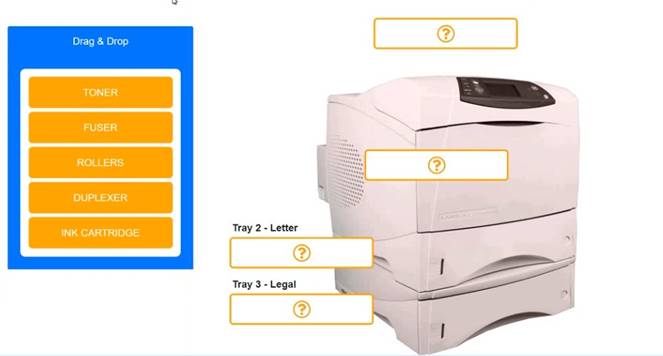
Solution:
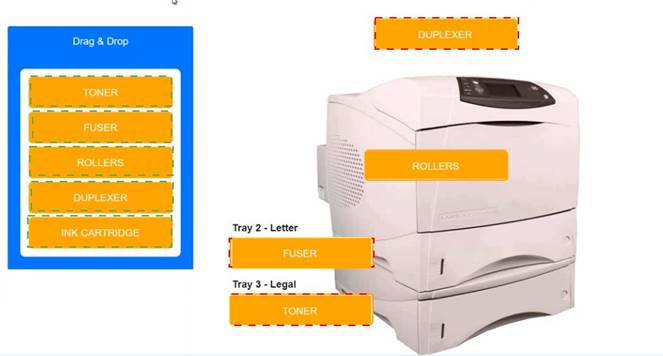
Does this meet the goal?
- A. Yes
- B. Not Mastered
Answer: A
NEW QUESTION 10
A user needs to transfer files from an Apple phone to a workstation. Which of the following connection types should the user utilize?
- A. USB-C
- B. Serial
- C. Lightning
- D. NFC
Answer: C
Explanation:
Lightning is a proprietary connection type that is used by Apple devices, such as iPhones, iPads, and iPods, to transfer data, charge, and connect to accessories. Lightning cables have a reversible 8-pin connector that can be plugged into a USB port on a workstation or a power adapter. USB-C, serial, and NFC are not compatible with Apple phones.
Reference: [CompTIA A+ Core 1 (220-1101) Certification Study Guide], page 13.
NEW QUESTION 11
A user attempts to connect a laptop to a projector but receives the following message from the projector: Out of Range. Which of the following needs to be addressed first?
- A. Change the resolution settings.
- B. Check the video cable and replace it if necessary.
- C. Set the computer's display settings to extend/duplicate.
- D. Verify that the laptop video card driver is the most up-to-date version.
Answer: A
Explanation:
The most likely answer is A. Change the resolution settings.
The error “Out of Range” normally means that the resolution being output by the computer is not compatible with the projector. The resolution is the number of pixels that are displayed on the screen. If the resolution is too high for the projector, it may not be able to display the image correctly or at all12.
To resolve this issue, you should try lowering the resolution settings on your laptop to match the native resolution of the projector or a lower one. You can do this by following these steps1:
•Right-click on an empty area of your desktop and select Display settings.
•Under Scale and layout, click on Display resolution and choose a lower option from the drop-down menu.
•Click Apply and then Keep changes.
•Reconnect your laptop to the projector and check if the image is displayed properly.
If changing the resolution settings does not help, you may need to check other factors,
such as the video cable, the display settings, or the video card driver. However, these are less likely to cause the “Out of Range” error than the resolution settings.
NEW QUESTION 12
A technician is upgrading the memory on a server that processes payment information online. Which of the following types of memory would the technician most likely install?
- A. DDR4
- B. VRAM
- C. SODIMM
- D. ECC
Answer: D
Explanation:
ECC stands for Error Correction Code, which is a type of memory that can detect and correct data errors that may occur during processing or transmission. ECC memory is commonly used in servers that handle sensitive or critical information, such as payment information online, because it can reduce the risk of data corruption, system crashes, or security breaches12.
DDR4 is a generation of DDR technology, which stands for Double Data Rate. DDR4 memory is faster and more power-efficient than its predecessors, but it does not necessarily have ECC functionality. DDR4 memory can be either ECC or non-ECC1. VRAM is Video RAM, which is a type of memory that is dedicated to storing graphics data for display. VRAM is usually found on graphics cards or integrated graphics processors, not on servers3.
SODIMM is Small Outline DIMM, which is a type of memory module that has a smaller size and lower profile than regular DIMMs. SODIMMs are typically used in laptops, notebooks, or other compact devices, not on servers3.
NEW QUESTION 13
A technician is configuring a workstation to be used as a VM host. After installing the necessary software, the technician is unable to create any VMs. Which of the following actions should be performed?
- A. Disable the BIOS password.
- B. Enable TPM.
- C. Enable multithreading.
- D. Enable Fast Startup.
Answer: B
Explanation:
If you want to install Windows 11 on a virtual machine using Hyper-V, you will have to use a “Generation 2” VM and enable the “trusted platform module” (TPM) and Secure Boot options. Otherwise, the OS won’t install.
Starting with Windows 11, Microsoft is changing the system requirement and making TPM 2.0 and Secure Boot a prerequisite to perform an in-place upgrade or clean install the new version on any device. This is in addition to the new 4GB of RAM and at least 64GB of storage.
quoted from here:
https://pureinfotech.com/enable-tpm-secure-boot-hyperv-install-windows-11/ Furthermore, Multithreading is not a requirement for hyper-v hosting.
To create virtual machines on a workstation, the technician needs to enable Trusted Platform Module (TPM) in the system BIOS. TPM is a hardware-based security feature that helps protect the system from unauthorized access and tampering. It is required for many virtualization technologies, including Hyper-V, VirtualBox, and VMware. References: CompTIA A+ Certification Exam Objectives - 220-1002: 2.7 Explain the basics of virtualization.
NEW QUESTION 14
A user needs to upgrade the power supply of an older workstation to properly power a new graphics card. Which of the following criteria should the technician check to ensure the power supply will support the upgraded workstation? (Select two).
- A. Efficiency rating
- B. Heat dissipation
- C. Wattage
- D. Form factor
- E. Fan type
- F. Modular cabling
Answer: CD
Explanation:
The technician should check the wattage and the form factor of the power supply to ensure it will support the upgraded workstation. These are the two most important criteria for choosing a compatible and adequate power supply.
✑ Wattage: The wattage of a power supply is the maximum amount of power it can deliver to the components of the workstation. The wattage of the power supply should match or exceed the total power consumption of the components, especially the new graphics card, which is usually the most power-hungry part. If the power supply does not have enough wattage, it may cause instability, crashes, or damage to the workstation. To estimate the power consumption of the components, the technician can use a power supply calculator tool, such as the ones found in the web search results123. The technician should also add some headroom to the wattage, such as 20% to 50%, to account for peak power consumption, future upgrades, or power supply degradation.
✑ Form factor: The form factor of a power supply is the physical size and shape of the unit. The form factor of the power supply should fit in the case of the workstation and match the mounting holes and screws. The most common form factor for desktop power supplies is ATX, which measures 150 x 86 x 140 mm. However, some older or smaller workstations may use different form factors, such as SFX, TFX, or FlexATX. The technician should check the specifications of the workstation case and the power supply to ensure they have the same form factor.
Other criteria, such as efficiency rating, heat dissipation, fan type, and modular cabling, are not essential for supporting the upgraded workstation, but they may affect the performance, noise, or aesthetics of the power supply. The efficiency rating is the percentage of input power that is converted to output power, and it indicates how much power is wasted as heat. The heat dissipation is the ability of the power supply to cool itself and prevent overheating. The fan type is the design and size of the fan that cools the power supply, and it affects the noise level and airflow of the unit. The modular cabling is the feature that allows the user to detach unused cables from the power supply, and it helps to reduce clutter and improve airflow inside the case.
References:
✑ How to Choose the Right Power Supply for Your PC - Lifewire4
✑ How to Choose a Power Supply: 7 Steps (with Pictures) - wikiHow5
✑ How to pick the best PC power supply - PCWorld6
✑ Power Supply Calculator – PSU Wattage Calculator | Newegg1
✑ Power Supply Calculator | Cooler Master2
✑ Power Supply Calculator - PSU Calculator | OuterVision3
NEW QUESTION 15
An administrator is responding to a network server outage. The administrator has logged in to the server to troubleshoot the outage. Which of the following is the first step the administrator should take when attempting to troubleshoot the issue?
- A. Document the results.
- B. Analyze the error logs.
- C. Check the physical connections.
- D. Upgrade the server firmware.
Answer: B
Explanation:
The correct answer is B. Analyze the error logs.
Error logs are files that record the events and errors that occur on a server or a network device. They can provide valuable information about the cause and the time of the outage, as well as any warnings or alerts that preceded it. Analyzing the error logs can help the administrator narrow down the possible sources of the problem and identify the best course of action to resolve it.
The first step in troubleshooting a network is to identify the problem1. As a part of this step, the administrator should gather information about the current state of the network using the network troubleshooting tools that are available1. One of these tools is the error log viewer, which can be accessed through the server’s operating system or a network monitoring software. The administrator should look for any entries that indicate a failure, a crash, a timeout, or an exception in the error logs. The administrator should also note the date and time of the entries, as well as the severity and the frequency of the errors.
The other options are less likely to be the first step in troubleshooting, because:
•Documenting the results is an important step in troubleshooting, but it should be done after identifying and resolving the problem, not before. Documenting the results can help the administrator keep track of the actions taken, the changes made, and the outcomes achieved. It can also help prevent future problems by providing a reference for best practices and lessons learned1.
•Checking the physical connections is another important step in troubleshooting, but it should be done after analyzing the error logs, not before. Physical connections are the cables and ports that link the server to other devices on the network. They can affect the quality and stability of the network signal. If the error logs do not indicate any software or configuration issues, then checking the physical connections can help determine if there is any damage or interference in the hardware2.
•Upgrading the server firmware is a possible solution for some network problems, but it should not be done as a first step in troubleshooting, unless there is a clear indication that the firmware is outdated or corrupted. Firmware is a type of software that controls the basic functions of a hardware device. Upgrading the firmware can improve performance, security, and compatibility, but it can also introduce new bugs or conflicts with other software or hardware components. Therefore, upgrading the firmware should be done with caution and only after backing up data and settings3.
For more information and tips on how to troubleshoot network issues, you can visit these links:
•A Guide to Network Troubleshooting - CompTIA
•What is Network Troubleshooting? How to Fix Network Issues - SolarWinds
•Network Troubleshooting - Methodology, Steps & Techniques - DNSstuff
NEW QUESTION 16
......
Thanks for reading the newest 220-1101 exam dumps! We recommend you to try the PREMIUM Certleader 220-1101 dumps in VCE and PDF here: https://www.certleader.com/220-1101-dumps.html (443 Q&As Dumps)
